
Help / Product guides / Delivery / Deliveries
Deliveries
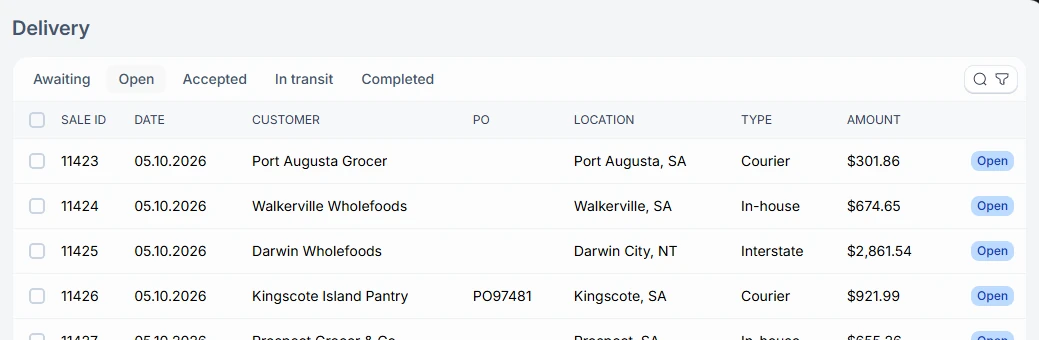
Follow each delivery from awaiting to completed.
Last updated
Statuses
The Delivery page has a tab for each status. Each delivery shows its sale ID, driver, date, customer, PO, location, type, delivery date, and amount.
- Awaiting: waiting to be ready.
- Open: ready to go.
- Accepted: being scanned and loaded.
- In transit: on the road.
- Completed: delivered and signed for.
Edit a delivery
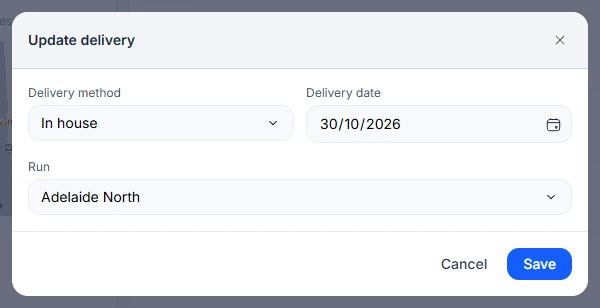
Open a delivery and choose Edit. Under Update delivery, set the Delivery method (Pickup, In house, Courier, or Interstate), the Delivery date, and the Run. Use Change status on the Delivery list to move deliveries between statuses.
Picking
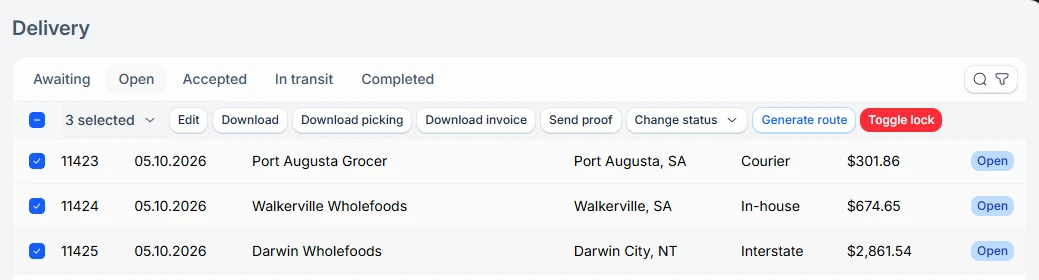
Choose Download picking on the Delivery list to download a picking list as a PDF.
Out-of-stock deliveries
If a delivery is on hold because some products are out of stock, choose Reallocate stock, Split sale, or Remove missing.
Other actions
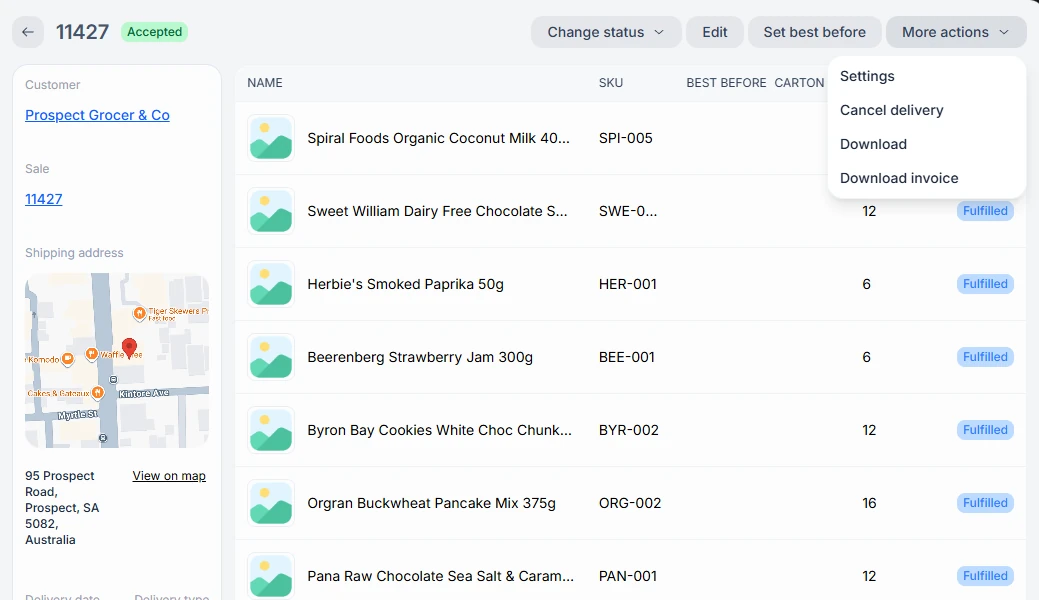
A delivery also has Set best before, Lock and Unlock, Settings (courier name, tracking number, and cost), Download, Download invoice, and Cancel delivery. Cancel delivery is only available while it is Accepted or In transit.
More than one workspace
If you work in more than one workspace, switch workspace in the sidebar to see its deliveries.