
Help / Product guides / Purchasing / Suppliers
Suppliers
Add the companies you buy from, and link each product to its suppliers.
Last updated
Add a supplier
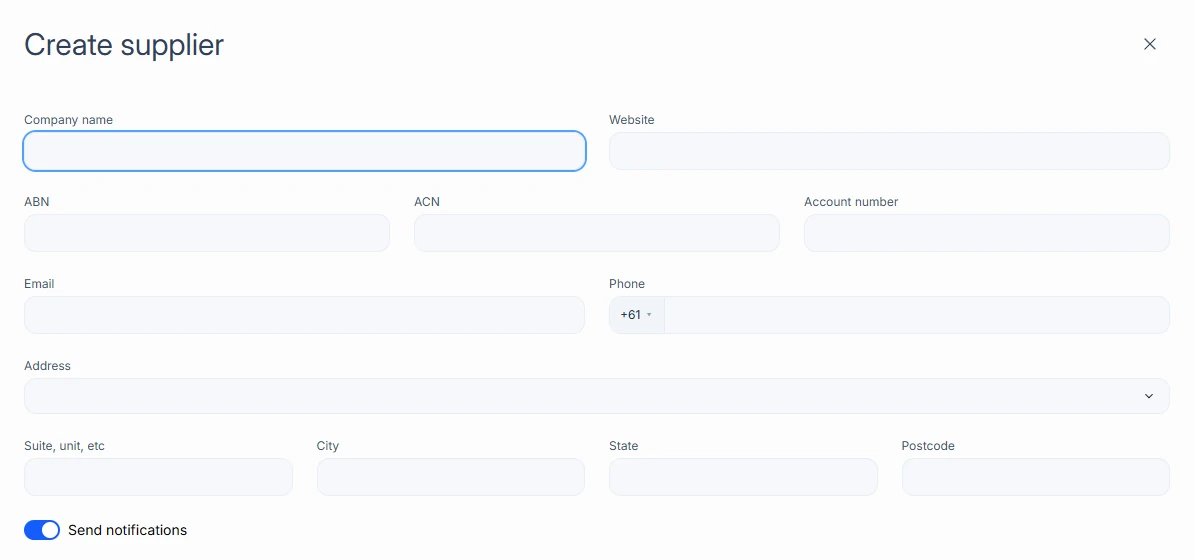
Open Suppliers in the sidebar and choose Create supplier. To load many at once, use Import.
- Enter the Company name, and optionally Website, ABN, ACN, Account number, Email, Phone, and Address.
- Turn on Send notifications if the supplier should receive emails from Zami.
- Choose Create contact for each person you deal with: Name, Surname, Email, Phone, and Role.
- Add any Notes, then save.
Link products to a supplier
Costs and pack sizes are set on the product, not on the supplier. Open the product and, under Available from suppliers, choose Add.
- Pick the supplier and enter the Cost per unit.
- Choose Unit or Weight. To record how the supplier packs it, choose Add level for Carton, Master Carton, Layer, or Pallet.
- Set Duty tax % and GST taxable if they apply.
- Mark the Primary supplier. Only the primary supplier and its cost sync to your accounting integration.

The supplier profile
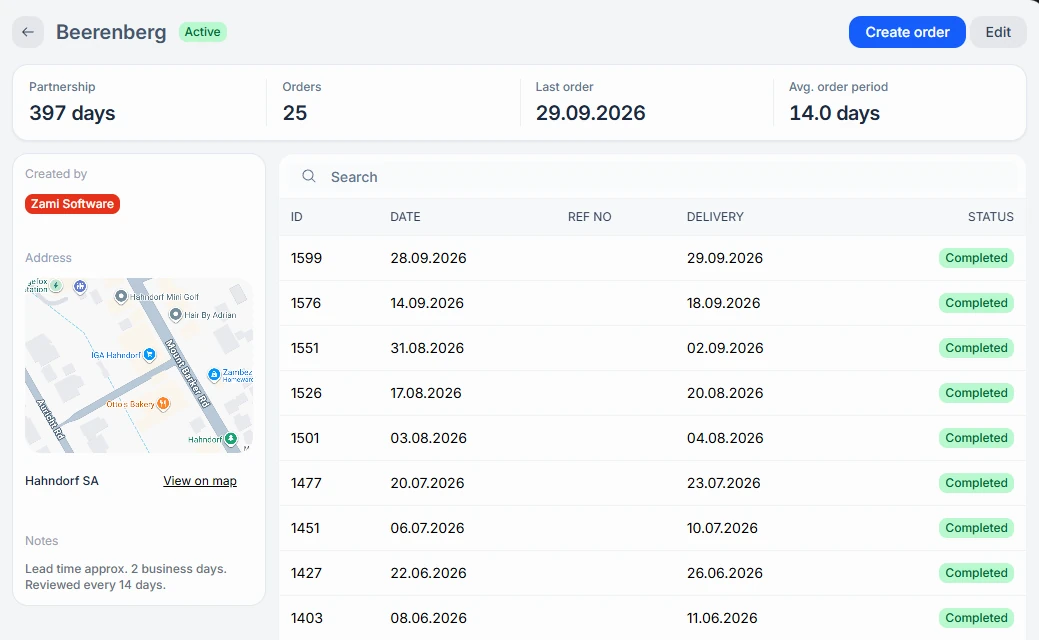
Open a supplier to see its purchases with ID, date, reference number, delivery, and status, along with Orders, Last order, Avg. order period, and an activity timeline. Choose Create order to start a purchase with the supplier already filled in.
Hide a supplier
Use Switch visibility on the Suppliers list to hide a supplier you no longer use. On the supplier profile the same action is called Deactivate, and Activate brings it back.