
Help / Product guides / Inventory / Adjust stock
Adjust stock
Stocktakes, write-offs, and transfers.
Last updated
Run a stocktake
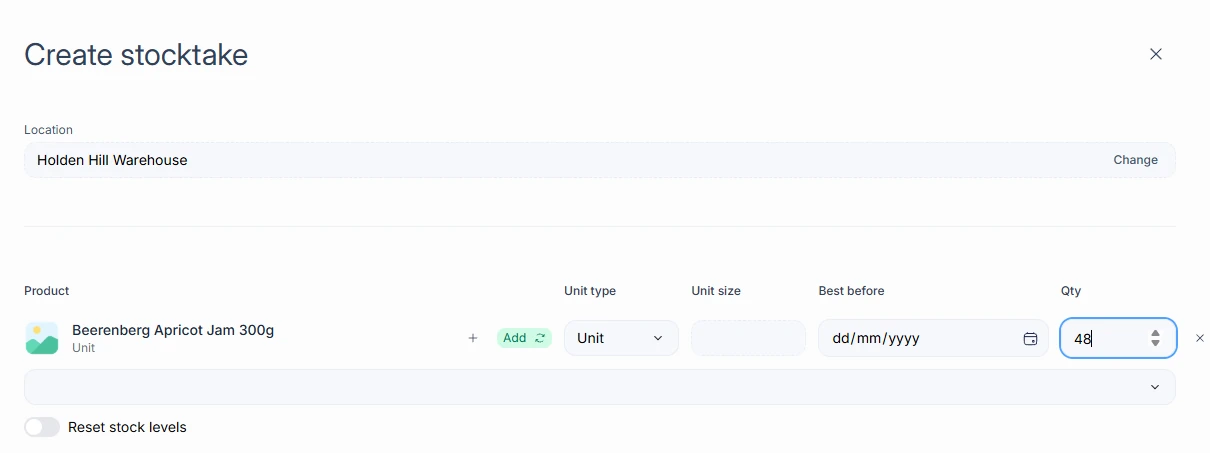
On Inventory, or on a product’s inventory page, choose Adjust stock, then Stocktake.
- Choose the Location. Your default location is selected.
- Search for each product and add it.
- Enter the Unit type, Unit size, Best before, and Qty. Ingredients also take a temperature. Use Add another batch for another best-before date.
- For each line, choose Add to add to the current stock, or Replace to set it to what you counted. Reset stock levels sets the stock for the whole location.
- Submit.
Write off stock
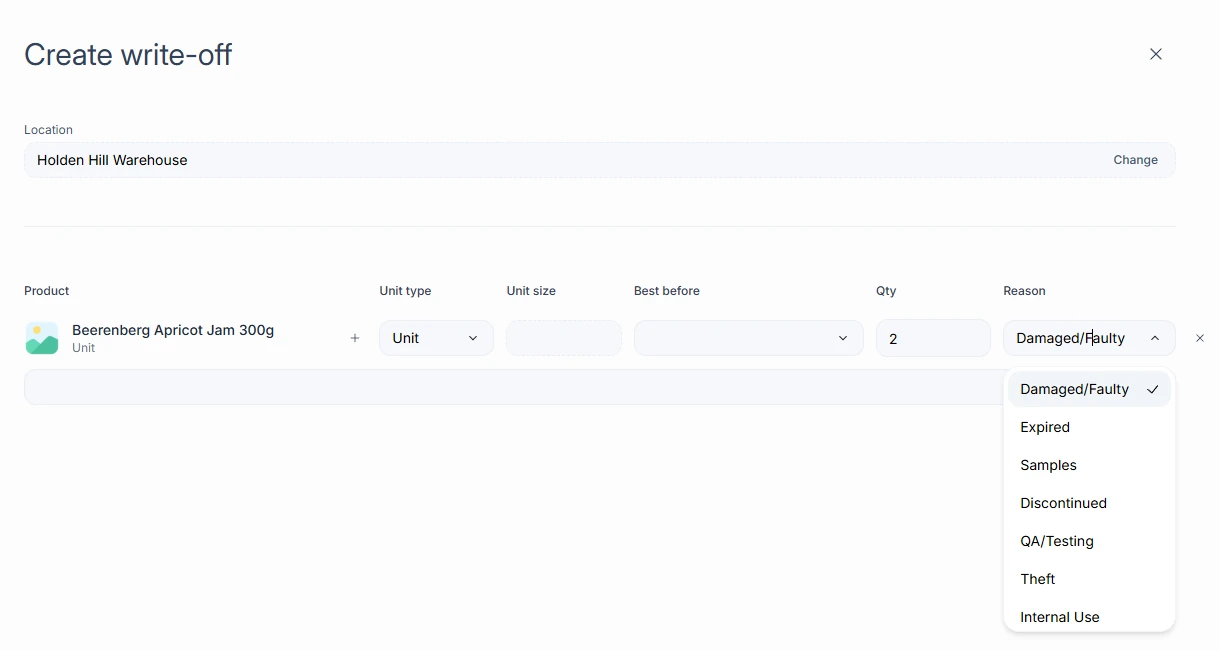
Choose Adjust stock, then Write-off. Pick the stock and a reason: Damaged/Faulty, Expired, Samples, Discontinued, QA/Testing, Theft, or Internal Use.
Transfer stock
Choose Adjust stock, then Transfer, to move stock between locations. Transfer only appears when you have more than one location.