
Help / Product guides / Production / Scheduling and running
Scheduling and running
Schedule production, run each step, and pack.
Last updated
Schedule production
Open Production and choose Create production. This opens Schedule production.
- Choose the Recipe and set the number of batches with − and +.
- Work through each step. Set its Production date, check the ingredient lots allocated, and choose Accept. A step cannot be dated before the step before it.
- Set up the Packing step, or choose Skip and set it later.
- Choose Create.
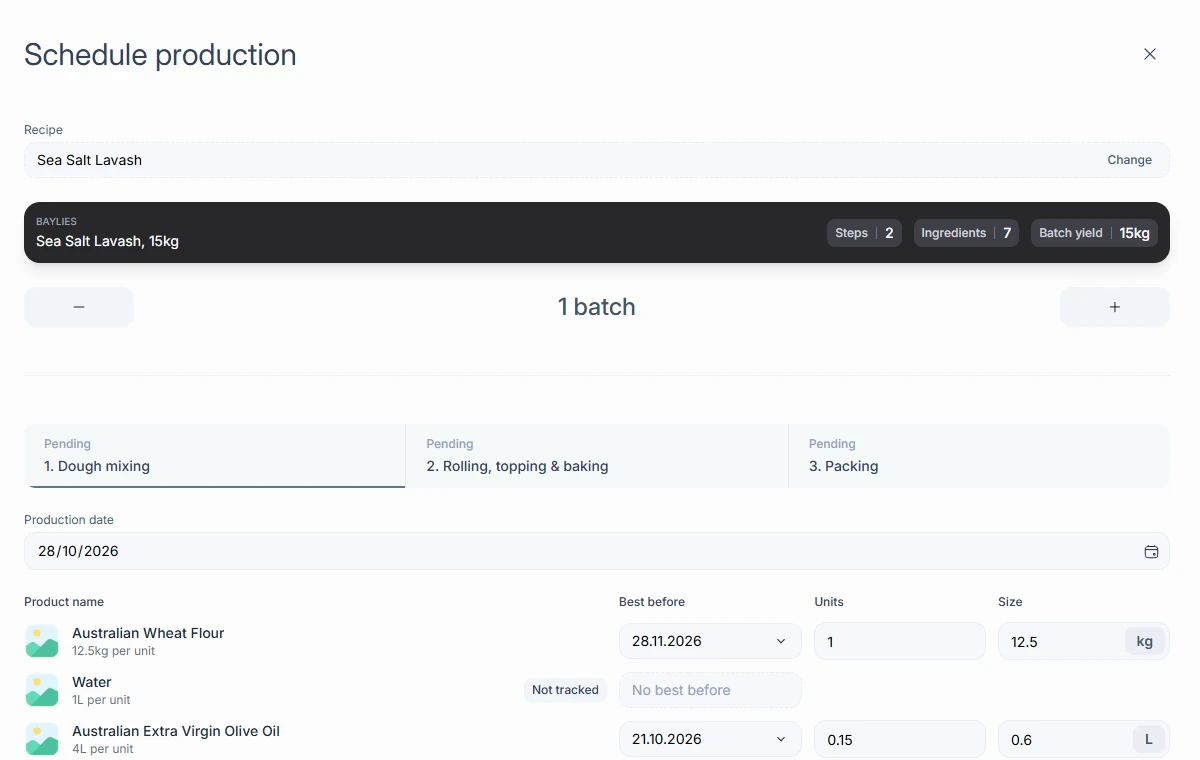
If a step shows Insufficient stock, what you can do depends on your production settings. With Recipe recalculation on, choose Recalculate with short stock to scale the batch to what you have.
Follow production
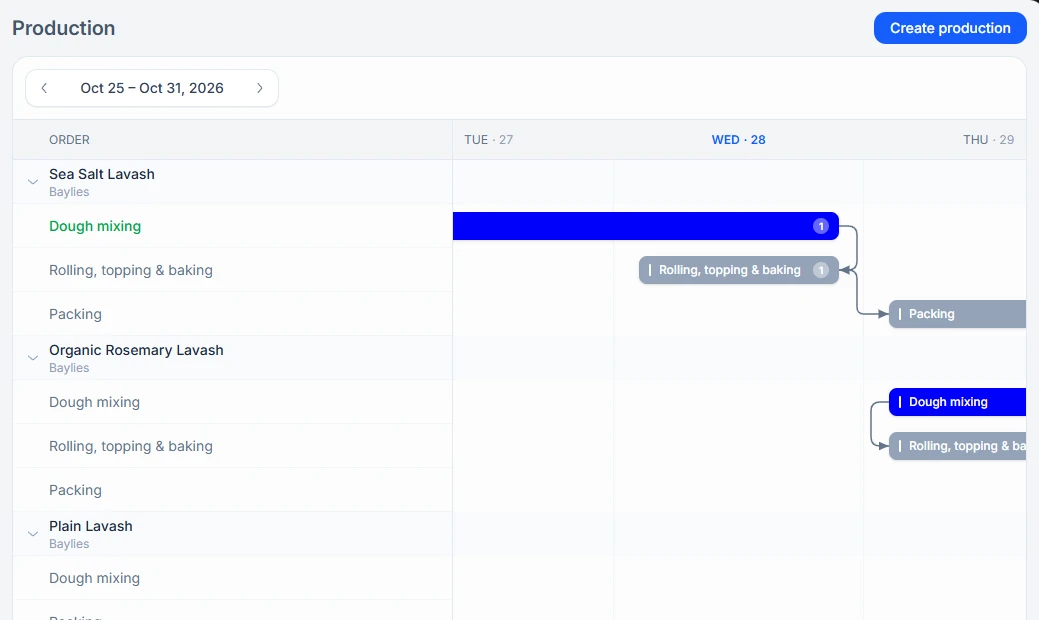
The Production page shows open batches on a timeline. Use Today, Previous, and Next to move around, and click a step to start or finish it.
On the production floor
Floor accounts see only the floor screen. Operators choose Start step and Finish step, and enter their PIN for each action so Zami records who did it. When finishing, they can record extra ingredients used.
With Ingredient substitutes turned on, an operator can choose Find a substitute for an ingredient that is short. Substitutes are only offered for short ingredients.
Packing
Start packing, confirm the best-before dates and quantities, then choose Finish. With Partial packing turned on, choose Partial instead to pack some now and leave the rest open.
Approval
With Admin approval turned on, packed stock waits for the office. Someone who can edit production opens the batch and uses Set best before to approve it. The batch then shows Packing approved.