
Help / Product guides / Sales / Sales orders
Sales orders
Create, approve, split, merge, and invoice sales.
Last updated
Create a sale
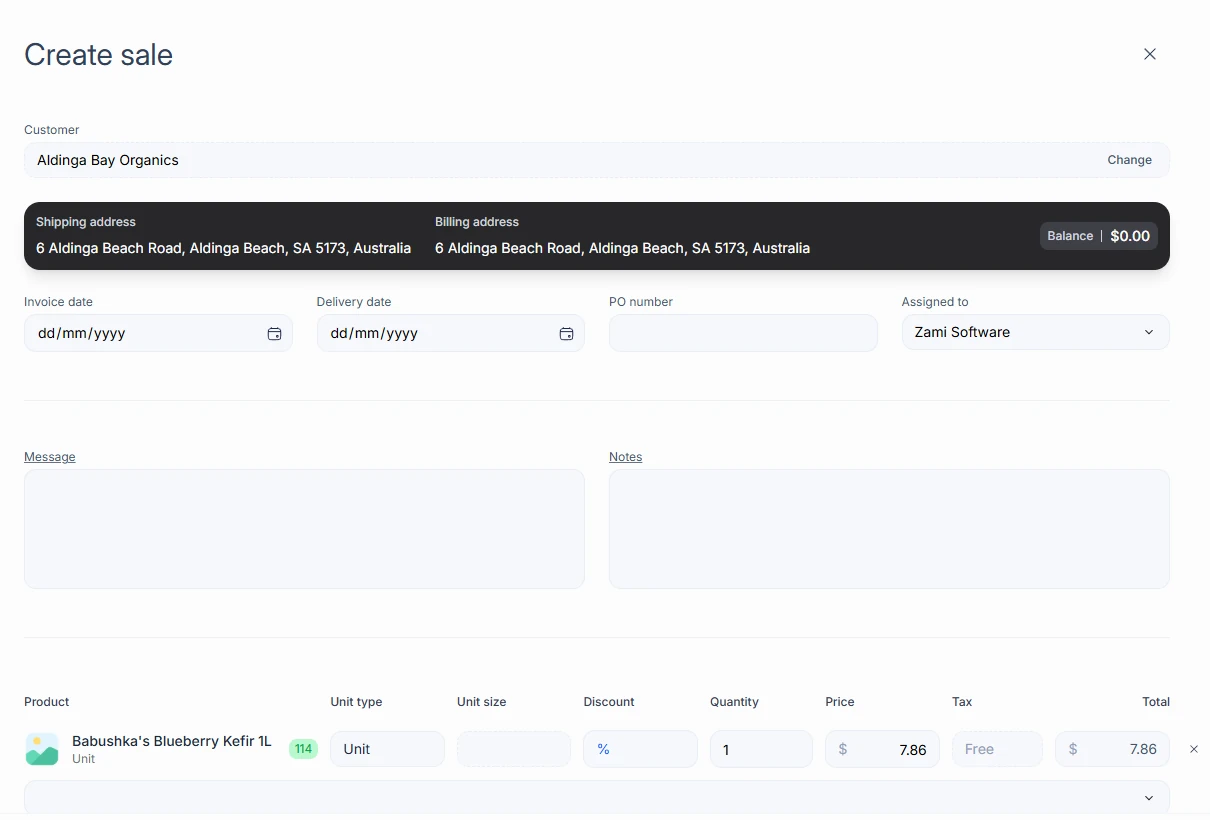
Open Sales and choose Create sale, or use Create sale on a customer.
- Choose the customer. Their card shows the overdue count and balance.
- Add products by unit or box. Pricing groups, quotes, and discounts apply.
- Set the Invoice date, Delivery date, PO number, and Assigned to, and optionally a Message (printed on the invoice) and internal Notes.
- Save.
Orders placed in the ordering portal arrive in Sales on their own and are marked in the Portal column.
Approve
With Require approval turned on in Settings, new sales wait as unapproved and do not create a delivery until approved. Choose Approve on the sale, or select several on the list and approve them together.
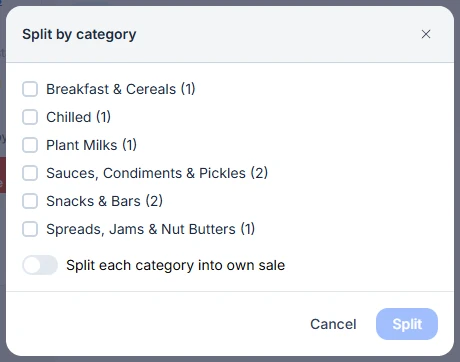
Split by category
On a sale with products from two or more categories, choose Split by category to move chosen categories into separate sales.
Merge invoices
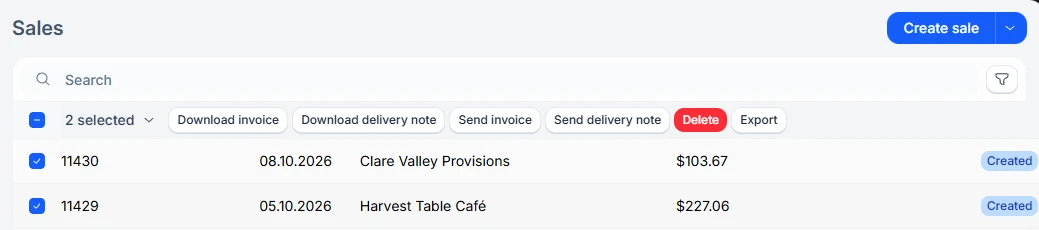
To combine sales for the same customer, select them on the Sales list and choose Merge. The other invoices and their deliveries are deleted, leaving one.
Invoices and delivery notes
On the sale, use Download or Send to customer. From the Sales list, the row menu and selection actions include Download invoice, Send invoice, Download delivery note, and Send delivery note. If accounting is connected, the sale shows whether it has synced.
Prepaid sales
A prepaid sale shows a Prepayment panel with its status, such as Paid, Awaiting customer approval, or Payment failed. Use Request approval to ask the customer to approve the payment, or Proceed now.